Showing posts with label WINDOWS. Show all posts

Saturday, October 21, 2017

Best image Optimization Software For SEO in windows and Mac

Posted by Jaysukh Patel
Are you finding the best image optimization techniques? Then you must have to use handy image compression tools and software for personal and official use and plugins (minify and hammy) available for image optimization in WordPress. Are you worried about image optimization and compression then you must have to use below suggested and best-rated software for your Pac and Mac?

Wordpress plugins take more server resource if you turn on compress all images at once from your WordPress dashboard.

So make and prepare HD quality image on your PC or Mac before upload post. Or Publish post. Polished image creation decrease server load on upload time.

Best image optimization software and image compressor for better SEO

Pain.net

Pain.net is really excellent photo making and Picture editing software for the blogger and image maker. That help to edit screenshots, Create New Image, Use Different Scale option, Change image, Arrange images side by side and use different tools for a point or show essential settings on the screen to the readers for easy understanding.

Before save you can see estimated image side and change it back save with preview. pain.net tools also helpful to convert or break picture formate into another picture formate from JPEG, PNG, GIF and any other.

RIOT (Radical Image Optimization Tool) for image compression

Riot is free and open source image optimizer software for your website and blog building. RIOT giving auto compression suggestion. But for the manuall operation, you can also set as of your target image size like 200kB to 20 KB and WhatEver.
RIOT is also giving the option for image saturation, Compression, Color charger, and brightness. Here all the operation with screen shot helps to use actual on RIOT.

To use this software you have to simply upload the image that can be shown in the left pane of the software window. And converted image will be shown at right side pane. You can save the compressed image from top bar given in top tab.

RIOT is also recommended by GIMP, XnView, Photo shop users and graphic designer.

Features

All the image format supporting, JPG, GIF, JPEG, BMP, or Photoshop PSD file
All the type of image not limitation of file size and more
Download RIOT click here
Image optimization software for you

Kraken.io (Pro version)

Kraken.io is best image compression techniques with the algorithm. This image Compression software is very popular for business and professional users.
Your website has google quality image, Then you must have to use this image compression algorithm software for batter utilization.
compress image for SEO for Web
compress the image for SEO for Web
Here you can go with premium plans after used as free 20 days usage

Kraken also supports your WordPress blog or website through its plugins.

Online Image Optimization Tools for Compress Image

There too many popular online image compression tools, That's easy to access and help to convert any size image very fast without any registration. tiny JPG and Tiny PNG is a great online website for Image compression. Compress your Business image, logo and Banner image very fast and securely.


Hope, you like the most amazing and very popular image compressor or image optimization software for use. Have you any alternate software for your windows or Mac then comment in below. Also share your experience, if any of above Best image compression software.
Read More

Thursday, June 12, 2014

Know wireless network or wifi password in windows 8 or windows 8.1: Password change

Posted by Jaysukh Patel
More over office and home users always find wifi password to run internet on another device. Wifi password cant visible to any user but using this way you can see wifi or internet password in windows 8 or windows 8.1 desktop or laptop. Before window’s OS windows 7 gives very easy methods to see wifi password in your laptop or desktop. To see internet password on any windows machine, here I giving some basic screen step by step.

Before then I clarify you will to know internet password, you must have to connect with wifi. So at first you have to check I am connected or not. Once you are connected than password should be store automatically in your laptop or desktop. Then you can see any time whether you are connected or not.

Useful: Best windows 8 and windows 8.1 them download and installation guide.
           Download license version McAfee antivirus for 6 month, Windows 8 and 8.1
           Nero 12 full version for windows 7, windows 8
           How to get unknown wifi password?

Steps to see or change wifi or internet password in windows 8 or windows 8.1

Step 1: Wifi is connected or not

To check network sharing option, from there you will get all internet connections like Ethernet, wifi.
Go: Control panel > Network and Sharing center

internet connection option


Go: Network and sharing center > Change adapter settings
see or change wifi or internet password in windows 8 or 8.1 - Step 2

Here, in below screen device is connected with wifi internet
see or change wifi or internet password in windows 8 or 8.1

Step 2: See or change wifi password in windows 8

From there right click on wifi adapter icon,you will see the below options.
wifi status in windows 8 or windows 8.1
Then, Select status option from there

After clicked on status you will show all the option related to this network, ip address, Connection status, Duration and speed, Signal quality.
internet status in windows 8 or windows 8.1
Now click on wireless property button is same windows,

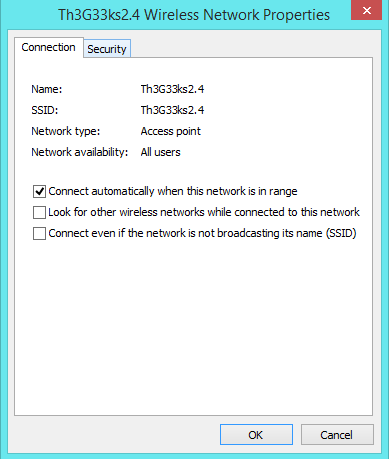
Now you will see another windows contains two tab – Connection and security
see wifi or internet password in windows 8 or windows 8.1
Under the security tab you will see hidden password for your internet connection

Note: You can change it your personal wifi password, than saved it
Thanks for image Source: http://www.7tutorials.com/

Related search,
Know internet password in windows 8 or windows 8.1
Change wifi password in windows 8 or windows 8.1
How can get saved password in windows 8 OS

Any suggestion and questions related to this post, comment in below comment box. We will be glad to help you.


Read More

Tuesday, April 22, 2014

How to run windows Software on MAC OS – Run Windows App on MACBOOK or Apple desktop

Posted by Jaysukh Patel
Today’s most powerful Desktop OS Microsoft windows released millions of awesome useful apps. The Some of same types of useful MAC software not available in market due to compactable issues and OS values. But you can use any windows software on Mac OS in free. For that you have to install windows environment on your MAC OS. Today tens of useful windows environment are available to use any windows software on MAC OS machine.

Best software to run windows Software on MAC OS


Virtual Machine
Virtual Machine is one of the best to run any windows software on MAC machine OS. Virtual machine manages your windows application. Your windows software run inside virtual machine with background functionality. But you can see on MAC machine desktop.
To create virtual environment in your MAC machine then you have to download and install VirtualBox from here
Run windows Software on MAC Machine 2

Boot Camp
Boot Camp helps to run windows software on fully windows environment to move in MAC os you have to restart your PC and after selecting MAC environment you can use MAC os. At the end if you want to move MAC OS to windows that you must switch your OS at the time of booting process.
Run windows Software on MAC Machine

Wine
Wine works for all OS including windows, MAC, Linux. But Wine don’t integrate some windows software. Its biggest drawbacks of Wine. But wine is completely free for that you don’t need windows license and other investment.
Wine software and other get from here

Remote Desktop
Remote desktop connect your Mac machine and windows machine. To connect your machine you simply need IP address of target PC that you want to see in your desktop remotely.
Here Step by step guide is given on how to connect Windows PC remotely.

Useful: How to access your PC on android mobile remotely? [New one]
           Access multiple computers with different OS through the single PC

Credit : Howtogeek

Related Search for this post:
How to install any windows software on MAC PC?
How to use windows app on mac machine?
How to remove OS type issue on MAC machine?

If you have any problem and question than please comment in below comment box. and don’t miss to share this post with friend through the below sharing button.

Read More

Monday, March 24, 2014

How to add contact to whatsApp PC or Bluestack whatsApp

Posted by Jaysukh Patel
WhatsApp “Add contact number manually in WhatsApp pc”, “Bluestack whatsApp contact add tricks” using this guide now a millions of online user are happy to chat with friends on whatsApp in free. This is inbuilt whatsApp feature for that you don’t have to use cracking techniques. So follow the below easy steps one by one in your whatsApp and finally gives your review in below comment box.

Useful:
How to install whatsApp on PC?
Solved Solution for error 25000 in bluestack.
Download APK file from google play store in your browser (PC).WhatsApp lock to hide message from whatsApp

Step to add contact add manually in WhatsApp pc or Bluestack whatsApp for PC

Step 1
Open your whatsApp in bluestack, move in contact page. Click on show menu from bluestack whatsapp: see in below image: see in below screen
Add contact number in whatsApp manually

Step 2
Click on contact from below strip: as of below image
Add contact number in whatsApp manually step 2

Step 3
After that click on “New contact”
Add contact number in whatsApp manually step 3

Step 4
Enter Details with Name and mobile number (register in whatsApp)
Add contact number in whatsApp manually step 4

Other Search For this post:

  • Add contact manually in whatsApp
  • How to add contact in whatsApp?
  • I am not able to chat whatsApp in bluestack.
  • How to import contact in whatsApp manually in bluestack?

Don’t miss to share this useful tutorial with your friend or your valuable speech in below comment box.

Read More

Wednesday, December 4, 2013

Whatsapp Lock For Windows Phone – Updates Available For Windows Phone

Posted by Jaysukh Patel
Friends, Who are using WhatsApp on windows phone always find the WhatsApp lock for message and chat hiding Apps from internet.
This article helps to find the WhatsApp lock mainly for windows 7 and Windows 8 phone. WhatsApp improve your functionality for any users that’s lock your WhatsApp chat app from unknown user who are trying yo cheat your message from your mobile and Windows Tab also.
WhatsApp for Windows - Updates with Lock

List of useful lock and other updates in WhatsApp windows App

  1. Locking system
  2. Forwarding message to other, new three different languages, Voice message, and other hidden bus solved.
  3. You can also change your mobile number without uninstall apps from your mobile.
So new millions of user updating old WhatApp apps from windows smart phone. You are updating? Hurry up and anjoy the awesome features only in windows phone.


WhatsApp Download and Updating link

You can find this app on Windows App Store in free of cost from here
You can visit its official reviews and Users ratting and more from here

Happy chatting and sharing this post with your friends on google+, Facebook and twitter.


Incoming search for this post,
  • How to hide message on WhatsApp?
  • WhatsApp for windows mobile.
  • How to hide message from WhatsApp on windows Mobile?
  • Free apps for remove message from WhatsApp.
  • Best WhatsApp lock for windows mobile and Tablet.

Cheers with,
Knowledgekites Google+, Facebook and Twitter

Read More

Sunday, November 24, 2013

How To Make Windows 7 Bootable USB | Format Windows 7 Using USB Pen Drive

Posted by Jaysukh Patel
Windows bootable usb can make with easy steps now available through the new released Microsoft Windows bootable usb software in its official site in free.
Bootable USB pendrive windows 7
You can make windows 7 bootable USB without any of the usb drive and usb drivers. Cause usb drivers already installed in your windows 7 system at prior time. Now you have to download make bootable usb from official Microsoft site from here Download.

Other instruction related this post find on Microsoft site from here

For more see the below screen you will get the perfect idea of downloading Windows bootable usb app.
Before the proceed on next steps you should to check out basic system requirement in below.
1. You can install this apps on windows XP, vista, and windows 7 (32 and 64 bit system)
2. Processor – Pentium with 233 MHz
3. 5o MB free space on HDD(Hard Drive)
4. 4 GB space in USB drive

Step to make windows 7, Windows XP and Windows vista bootable USB

1. Download and install windows 7 bootable USB software
windows 7 bootable USB
windows 7 bootable USB -1
2. Run this app on your PC from desktop “Windows 7 USB DVD Download Tool”.

3. After run the software provide the path of ISO file(Windows 7 CD).
windows 7 bootable USB
windows 7 bootable USB -2
4. Select media type for bootable device option “Create bootable pendrive” – “USB device “option.
windows 7 bootable USB
windows 7 bootable USB -3
5. Select USB option with refresh button, find the USB drive with minimum 4GB space. Erase all the data automatically from usb drive
windows 7 bootable USB
windows 7 bootable USB -4

6. After copying will start till 30 to 40 minutes wait for that and proceed for next.
windows 7 bootable USB
windows 7 bootable USB -5

Note :I gave all the steps for to make windows 7 bootable USB. So be careful and enjoy with keep backup your file from c drive.

You can also watch below video tutorial for to make windows 7 bootable USB or Format you pc with USB drive.

If you like this post then don’t miss to follow and share this post with your friend group using facebook, twitter and Google+ also. You can also comment if any problem in process.

Read More

Sunday, October 20, 2013

How to transfer my Iphone, Android, Windows mobile contact number to my computer?

Posted by Jaysukh Patel 2 Comments
If you are searching how to transfer mobile contacts in to computer then this one is the perfect meet to find the how to do this process. I am trying my best to transfer your mobile contact details in to your phone using simple cable connection.

Transfer method is different for different mobile device and Mobile OS version. Today’s you will familiar with the different mobile like Android, Blackberry, Iphone and Windows.

Why I am store contact in my Computer and Laptop.

There are many reasons behind it to take backup of your personal contacts or business contact in your personal computer and laptop.
More over you can also keep your personal messages, addresses and Emails. In your hard drive to keep it safe purpose.

When we need this technique?

If you are buying a new mobile, or switch to upgrade your current OS at that time you must be store your all the personal details in your computer or laptop using the below valuable tricks.
Please see the below configure software for particular mobile, it is available from its official site so don’t fear to download this apps in your pc or Computer.
For the Nokia users: Nokia PC suite OR ovi suite
For the Blackberry : Blackberry suite
For Apple Mobile(Iphone users) : Apple itune
For the Windows based mobile : Windows PC suit(Nokia lumia and other windows models )
If you are CDMA users than you can transfer your mobile data using the “BitPim” else you can transfer through the above method.
For more technique and awesome tips and tricks please join with us on Facebook, Google+ and twitter.
If you have any clear idea and suggestions then give your response by below comment box.

Related article: List of best apps for Nokia lumia 920 and 820, 420.

Read More

Monday, February 25, 2013

Google talk Beta: best window application for online chatting and video calling how to use

Posted by Jaysukh Patel
Google talk is one the best application of online chatting and video calling. Working and batter than the Skype.

Google talk is one of the most and best light weight application for desktop and Smartphone.
User can use easily with no confusing.

One of the most power full features is that, we can access at low speed internet.

Google talk is a window application and easy to download (1.5 mb) size.

You can download from that : http://www.google.co.in/talk/

 Some of the users are prefer to Google talk than the Skype. Because Gtalk is light weight and easy searchable to your friend list.

 
Requirement:
Supported OS for configuration is Windows XP, 7 and Windows 8. Google talk always run on network connectivity.

After installing Gtalk in your system you shall to enter username and password of your Gmail account with user name and password. (it must be necessary)

Google+ hangout is same as Gtalk but you can use it without installing, but in that case you have to install pulgins for video chatting. For more feature and you can know from here.

In Gtalk user can set own setting as own requirement from top bar in the window.

You can also see all the online friend and family with name from available pointer.

Gtalk with east chatting
 
Setting options
General > never run set up or open that’s means windows run automatically when PC or desktop at starting moment.

Shorting of your friends name 

Chat > by clicking on save history you can remember you talk in future.

Blocked > you can block person with his/ her email iD

Notification > notification option for notify other user’s event 

Audio > you have to chose your devise which you have to configure to talk with your friends.

Appearance > You can change as of your own look and theme of window, what ever.

Using Gtalk : (Options for talk)

-          Call : You can call with your friend and make a live debates and group discussion.
-          Chat : talk with typing text
-          Send voice mail : you can sent your speech through mail.

Innovative for Samsung: upcoming model in galaxy

If you have got new mail in your mail box than you have to show popup in bottom - right corner of the display or screen as notification.

 How to connect to Computer with simple cable: you have to know this technique

 
if you have like this post then hit the share button. to share with your friends and family

 It’s for my satisfaction from your side.

If you have any problem and Guidance to your friend than comment in below comment box. And we are helping you at a moment.

Thanking you!!

Read More